


Ad blockers keep your browsing clean, but some websites simply won’t work while one is active. Here’s how to disable content blockers in Safari — on every Apple device — in under two minutes.
Safari handles ad blocking differently from Chrome or Firefox. Instead of a built-in engine, it relies on Content Blocker extensions installed through the App Store. That means the steps to turn one off depend on which app you’ve installed and which Apple device you’re using. This guide covers all common scenarios.
Why You Might Need to Disable Your Ad Blocker
Before diving in, it’s worth understanding when disabling makes sense:
- A site’s login or checkout page isn’t loading correctly.
- Embedded videos or interactive content are broken.
- A publisher you trust asks you to whitelist their site.
- You’re testing a web page you’ve built yourself.
- A banking or government portal refuses to function.
In most of these cases, you only need to disable the blocker for one site — not globally. Safari makes that possible without removing the extension entirely.
How to Turn Off Ad Blocker on Safari for iPhone
The most common question users have is how to manage an ad blocker for iPhone running inside Safari. iOS content blockers are controlled through Settings, not through the browser toolbar.
Disable for a Specific Website (Recommended)
- Open Safari and navigate to the site.
The blocker must be active on the page you want to whitelist. - Tap the Page Settings button (aA icon).
It sits in the left side of the Smart Search bar at the top. - Tap “Website Settings”.
A panel slides up with per-site controls. - Find your content blocker under “Content Blockers”.
Toggle it off for this domain only. - Reload the page.
Safari refreshes automatically; ads will now be visible on this site.
Disable All Content Blockers Globally on iPhone
- Open the Settings app.
Scroll down and tap Apps, then tap Safari. - Scroll to “General” → “Extensions”.
All installed content blockers appear here with a toggle. - Toggle off each content blocker you want to disable.
Grayed-out toggle means the extension is inactive.
Note: Disabling globally means every website you visit will show ads until you re-enable the extension. Consider per-site disabling whenever possible.
How to Turn Off Ad Blocker on Safari for iPad
The process on iPad mirrors iPhone with one difference: in landscape mode the Smart Search bar shows the aA icon on the left side of the address bar, while in portrait mode it may appear as a small icon depending on your iPadOS version.
- Open Safari and visit the target page
- Tap the aA / Page Settings icon in the address bar
- Choose “Website Settings” from the dropdown
- Toggle off your content blocker for this site
- Reload and confirm ads are showing
For global disabling on iPad, follow the same Settings → Apps → Safari → Extensions path described for iPhone above.
How to Turn Off Ad Blocker on Safari for Mac
On macOS, content blockers appear under Safari’s Preferences as extensions. You have two options: disable the extension entirely, or use per-site controls from the toolbar.
Option A — Disable for One Website
- Open Safari and go to the website
- Click “Safari” in the menu bar → “Settings for This Website…”
A small popover appears beneath the Smart Search field. - Uncheck “Enable Content Blockers”
This turns off all active blockers for that domain. - Reload the page
Option B — Disable the Extension Globally on Mac
- Open Safari → Settings (⌘ + ,)
- Click the “Extensions” tab
- Locate your ad blocker in the left sidebar
Popular ones: AdLock, AdGuard, AdBlock, Wipr, Ka-Block! - Uncheck the checkbox next to the extension name
The extension stays installed but stops filtering pages.
Pro tip — Extension toolbar button
Many Mac ad blockers (AdGuard, 1Blocker) add a toolbar icon to Safari. Clicking it often reveals a one-click pause or whitelist-site option — the fastest path if your blocker supports it.
Popular Ad Blockers and Their Built-In Controls
Each extension has its own interface for pausing or whitelisting. Here’s a quick reference:
| Extension | Fastest Way to Disable for a Site | Global Toggle |
| AdGuard | Toolbar icon → “Disable on this website” | Toolbar icon → “Pause protection” |
| AdLock | Open AdLock app → Whitelist → add site URL (one tap) | Settings → Safari → Extensions → toggle AdLock off |
| 1Blocker | Toolbar icon → site toggle | 1Blocker app → disable in Safari Extensions |
| AdBlock | Toolbar icon → “Don’t run on this page” | Toolbar icon → “Pause AdBlock” |
| Wipr | Settings → Safari → Extensions → Wipr → site list | Settings → Safari → Extensions → toggle off |
| Ka-Block! | No per-site UI; use Safari’s “Settings for This Website” | Safari Extensions prefs → uncheck |
| Crystal | Safari Website Settings → Content Blockers off | Settings → Safari → Extensions → toggle off |
How to Re-Enable Your Ad Blocker
Turning your blocker back on is the reverse of any of the methods above. For per-site disabling, revisit the page, open the same Website Settings panel, and toggle the blocker back on.
For global disabling, return to Settings → Safari → Extensions (iOS/iPadOS) or Safari → Settings → Extensions (macOS) and re-enable the toggle or checkbox.
Some extensions — like AdGuard — also let you set a timer: “Disable for 30 minutes,” after which protection resumes automatically. This is the safest option when you only need temporary access.
Troubleshooting: Ad Blocker Still Active After Disabling
If ads still aren’t appearing after you’ve followed the steps:
- Hard-reload the page — on iPhone/iPad, hold the Reload button; on Mac, press ⌘ + Shift + R to bypass the cache.
- Check for multiple blockers — you may have more than one content blocker active. Go to Extensions settings and check each one.
- Disable iCloud Private Relay — on iCloud+ plans, Private Relay can interfere with site-specific rules. Check Settings → Apple ID → iCloud → Private Relay.
- Restart Safari — close all Safari windows and reopen. Extension state changes occasionally need a fresh session.
- Update the extension — outdated blockers sometimes ignore their own per-site exceptions. Open the App Store and check for updates.
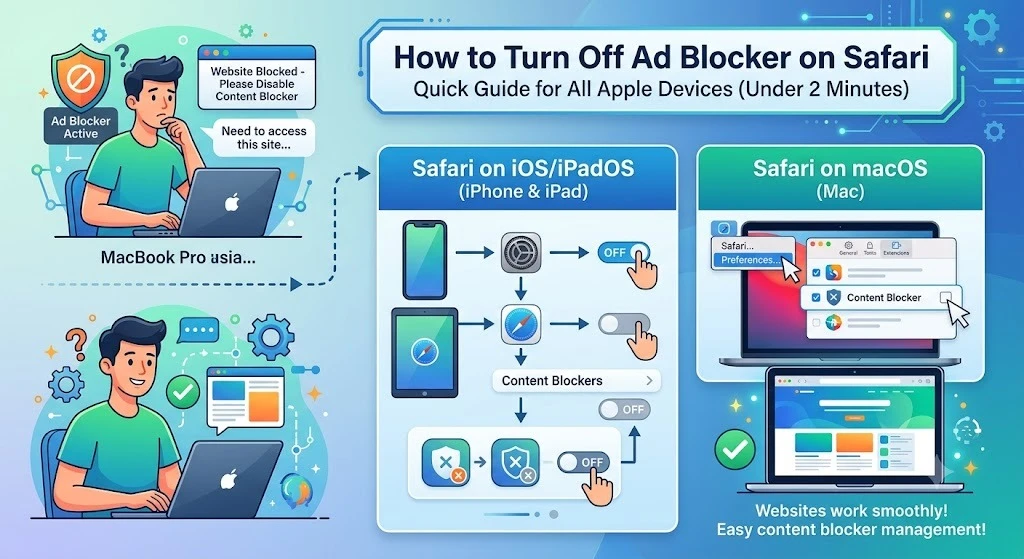
Editor’s Note: The opinions expressed here by the authors are their own, not those of impakter.com — In the Cover Photo: A user works on a MacBook using Safari, illustrating how to turn off ad blockers, manage Safari extensions and adjust content blocker settings on macOS and other Apple devices. Cover Photo Credit: DC STUDIO