


How to Use CapCut TTS
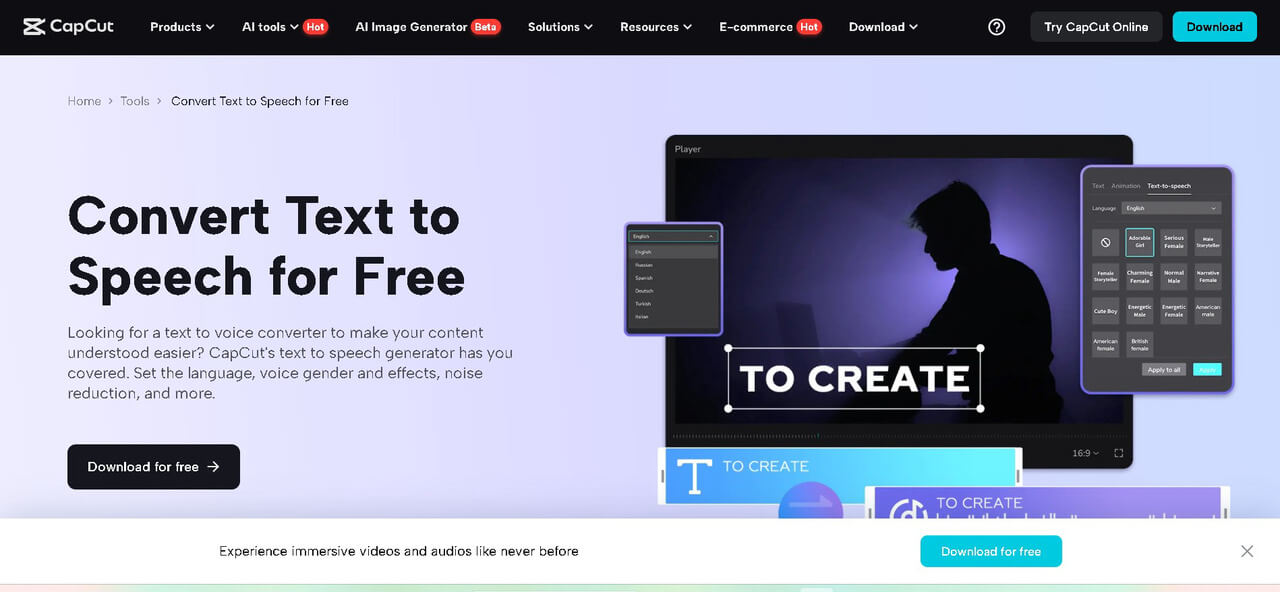
Why Add Voice with CapCut TTS?
Adding voice to your videos is more than a creative touch—it’s a game-changer for clarity and connection. Here’s why CapCut’s TTS is becoming a go-to tool for creators of all kinds:
1. It’s Fast and Easy
Instead of setting up a microphone, writing a script, and spending time recording and editing, you can type your script directly into CapCut and select a voice. The voice is generated in seconds, ready to use.
2. Natural-Sounding Voices
CapCut’s TTS engine is powered by AI that mimics human tone, pitch, and rhythm. Whether you need a warm narrator, a robotic voice for humor, or a professional tone for explainers, CapCut has you covered.
3. Multilingual and Multinational
Want to reach a global audience? CapCut offers a wide range of voice languages, including English, Spanish, Urdu, French, and more. You can also adjust speed, gender, and emotional tone (e.g., cheerful, serious, dramatic).
4. Perfect for Short and Long-Form Content
From 15-second Reels to 5-minute how-tos, CapCut TTS adapts well to all content formats. You can mix and match voices across sections to keep your audience engaged.
Best Uses of CapCut TTS
Here’s how you can use CapCut’s Text to Speech to supercharge your content:
Explainer Videos
Explainers work best when they combine visuals with clear narration. CapCut TTS can break down complex ideas with a voiceover that matches your visuals, keeping things easy to understand.
Example: Turn bullet points into narrated voice clips to explain topics like “How Blockchain Works” or “Beginner’s Guide to Fitness.”
Reels and Short Videos
Short videos often need to grab attention fast. A funny or dramatic TTS voice can help your content stand out in a noisy feed.
Example: Add quirky AI voiceovers to trending memes, product reveals, or reaction videos.
Storytelling and Vlogs
Not comfortable narrating your story on camera? Let CapCut do it. You can write your script and let the AI voice speak on your behalf.
Example: Share your travel diaries or life lessons through beautifully edited videos with expressive AI voices narrating the journey.
How to Use CapCut TTS to Add Voice
Adding voice with CapCut is as simple as typing and clicking. Try CapCut’s other AI tools, such as AI Video Upscaler, AI Voice Generator, and more, to make your video clear and high quality. Here’s how to do it in three quick steps:
Step 1: Type or Paste Your Script
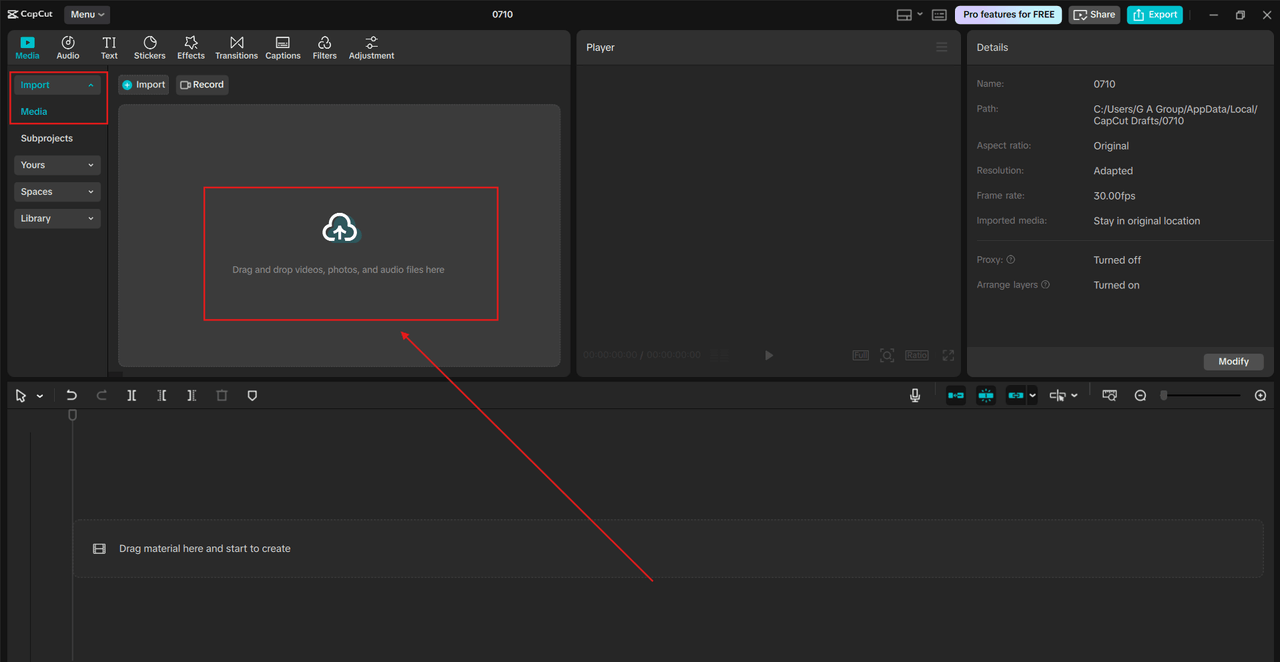
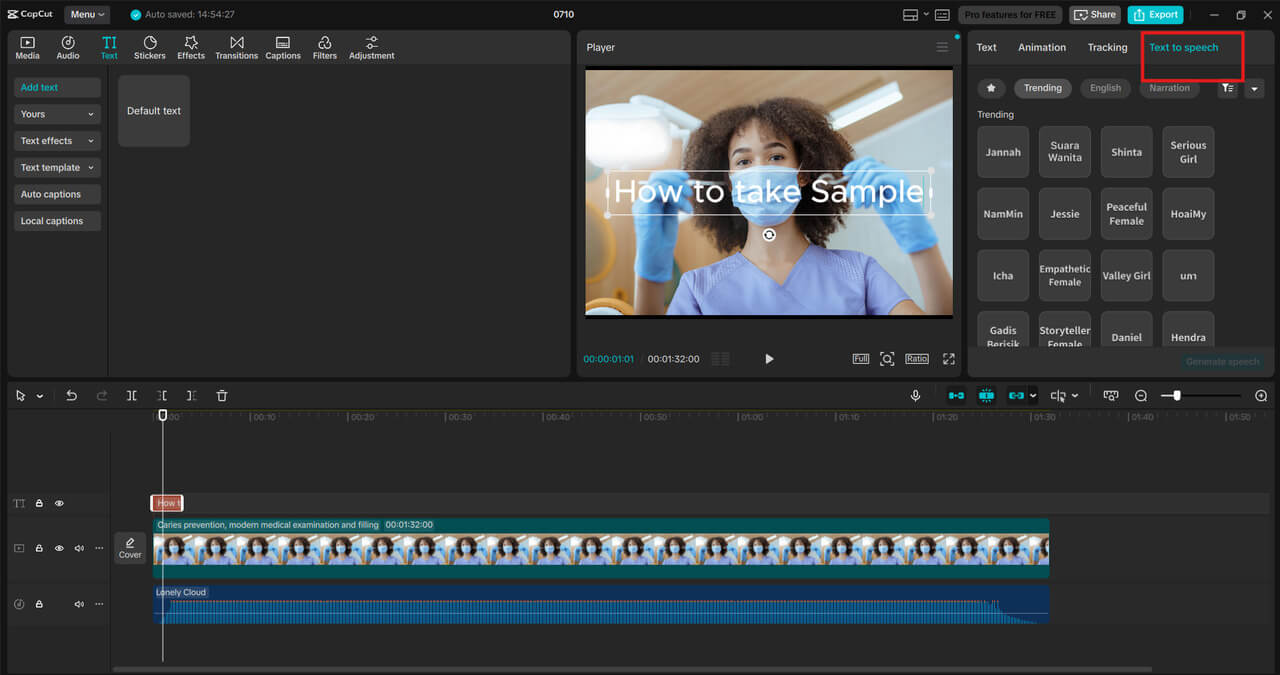
Open CapCut Desktop Video Editor. Import your video or create a new project. Click on the “Text“ option in the toolbar. Choose “Text to speech“. Paste your script or type it directly into the editor. Keep sentences short and clear for better pacing. Add pauses using commas and periods. Break long text into smaller clips for better timing.
Step 2: Choose Voice, Language, and Emotion
After pasting your script, CapCut lets you choose from dozens of voice options.
-
Select the Voice Style (Male/Female/Child).
-
Pick a Language (English, Spanish, Hindi, etc.).
-
Choose a Tone: Calm, Cheerful, Dramatic, Serious, and more.
-
Adjust Speed and Pitch to fit your video style better.
Try a dramatic voice for suspense stories, or a robotic voice for meme content by using the AI Voice Generator. You can preview each voice before applying.
Step 3: Add to Timeline and Sync
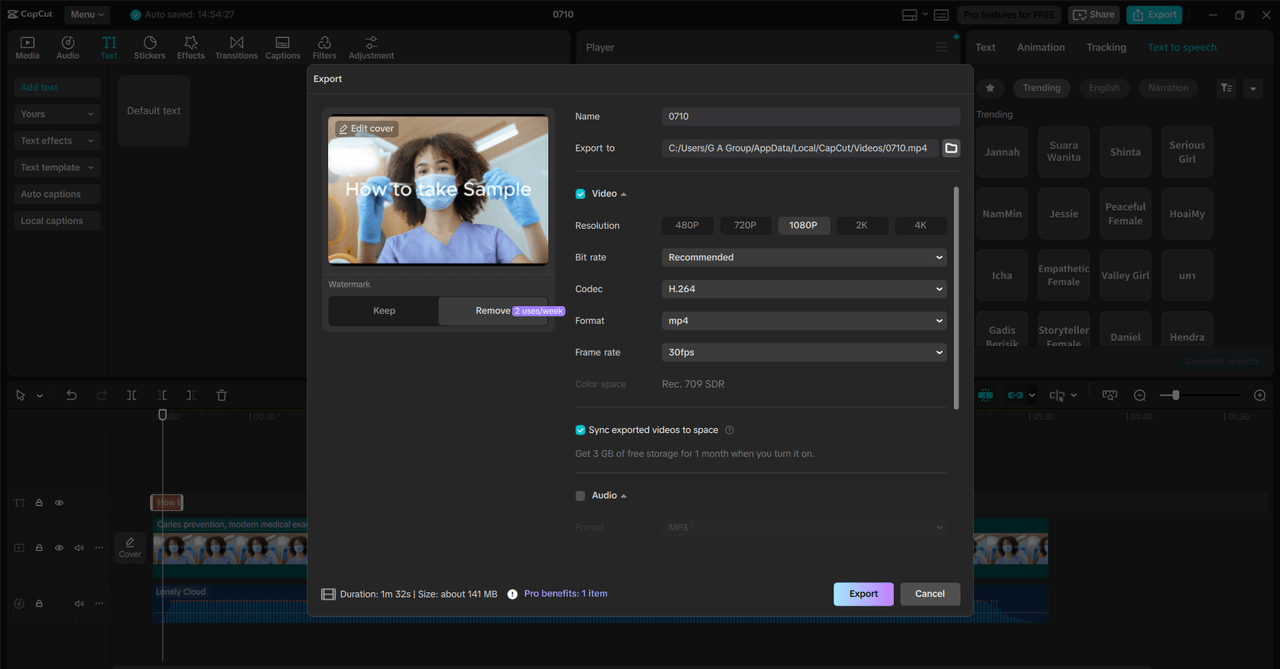
Once you’ve chosen your voice and tone, hit “Generate Voice“. CapCut will convert your text into speech. Drag the generated voice clip into your video timeline. Sync the voice with your visuals by trimming or moving the clip. Adjust volume levels to balance music and voiceover. Add subtitles if needed for accessibility. Now you’ve got a polished voiceover that enhances your visuals and delivers a clear message.
Bonus Tips for Better Voiceovers
-
Use Background Music Wisely: Add gentle music under the voiceover for a cinematic touch, but keep the voice clear.
-
Combine Multiple Voices: For dialogues or multi-part stories, use different TTS voices for each part.
-
Keep It Concise: Avoid overly long scripts. Shorter clips work best for keeping attention.
-
Test Before Finalizing: Preview the voiceover in different emotional tones to see which one feels most natural.
Conclusion
CapCut’s Text to Speech feature makes it easier than ever to bring your ideas to life with voice. Whether you’re creating educational explainers, social media Reels, or heartfelt stories, this tool saves time, effort, and even money—no microphone required.
As a creator, the ability to quickly generate voiceovers allows you to focus more on storytelling and editing, while still delivering high-quality, professional content. Want to Try CapCut TTS Today? Visit CapCut’s official website and try the Text to Speech tool for free. Upload your video, add a voice, and let your content speak for itself—literally.
Editor’s Note: The opinions expressed here by the authors are their own, not those of impakter.com — Cover Photo Credit: CapCut