Faxing is still necessary for a lot of businesses and individuals. Fax machines may have been an antique previously, but the digital process has made things quite easier. This is useful for sending a PDF as a fax from your computer; it is also easier and faster, and guarantees that someone receives an identical copy. This article lays out straightforward procedures for faxing a PDF from a computer, which is accurate and more efficient.
Preparing the Document
Sending a PDF file is possible, but you must check to make sure it is correct before faxing it. Go through each page and verify that all information is correct. It is good to save the document with a name you identify with, so it makes it easier and less confusing as to what you are opening later on. Having the file organized in an easily accessible folder also makes the process faster. Confirm the fax number and information of the recipient. Sending the fax to the wrong person can happen; hence, check the information well before you send a PDF as fax.
Choosing an Online Fax Service
These online fax services do away with the traditional fax machine. A good provider will ensure the process is as fast and easy as possible, in addition to being safe. Most services provide a very simple interface where the user uploads the PDF file and enters the fax number. While there are some that ask you to create an account, and some offer only limited free trials. Research features, restrictions, and security measures before you choose any service level.
Uploading the PDF File
Sign in to the service you chose, then find an upload button or drag-and-drop area. Pick the PDF from where it is saved on the computer. Since many online fax tools let you upload only certain types of files, make sure the tool allows your PDF file. Wait until your file uploads and moves on to the next step. This is to avoid unnecessary delays and mistakes when uploading the correct documents.
Entering Recipient Details
Enter the fax number for the recipient correctly. If the service asks for the country or area code, include it. Providing the correct fax information before sending guarantees that your fax is delivered quickly to the person you intend. Cross-check the number and other fields to avoid mistakes. Adding information in optional fields (e.g., subject line or message) can provide the recipient with some context.
Adding a Cover Page (Optional)
A cover page provides a brief introduction to your fax and describes its purpose. Most services will have templates, or you can design your own. A cover page can contain the sender’s name, contact address, the name of the recipient, and a few words. This information could help recipients recognize your brand and give them some context before opening the attached PDF.
Reviewing and Sending the Fax
Check all details carefully before sending. Check that the file, recipient number, and any cover page details are correct. Most services have this preview feature, where you can make sure that everything looks satisfactory. When you are content, hit send. The fax will be processed by the online system and sent to the machine or digital fax box.
Receiving Confirmation
Most send a confirmation email or notification after sending. This message indicates the success or failure of fax transmission. Keep this confirmation as a record of submission, especially for important or time-sensitive documents. If you encounter any issues, please refer to the error message for assistance and try resending the fax if necessary.
Troubleshooting Common Issues
Faxes sometimes do not go through completely due to wrong numbers, the line being busy, or even some technical issues. Please verify the number and confirm that the recipient’s fax machine is operational. In case it continues, you might want to use an alternative web provider on the internet or seek phone support for help. Maintaining backup copies of documents and confirmations ensures the safety of critical information during transmission.
Conclusion
Faxing a PDF from a computer streamlines document sharing and reduces reliance on traditional machines. Following this step-by-step guide helps users send their files securely and efficiently. By preparing the document, choosing a reliable service, and following each step, anyone can fax a PDF with confidence using their computer.
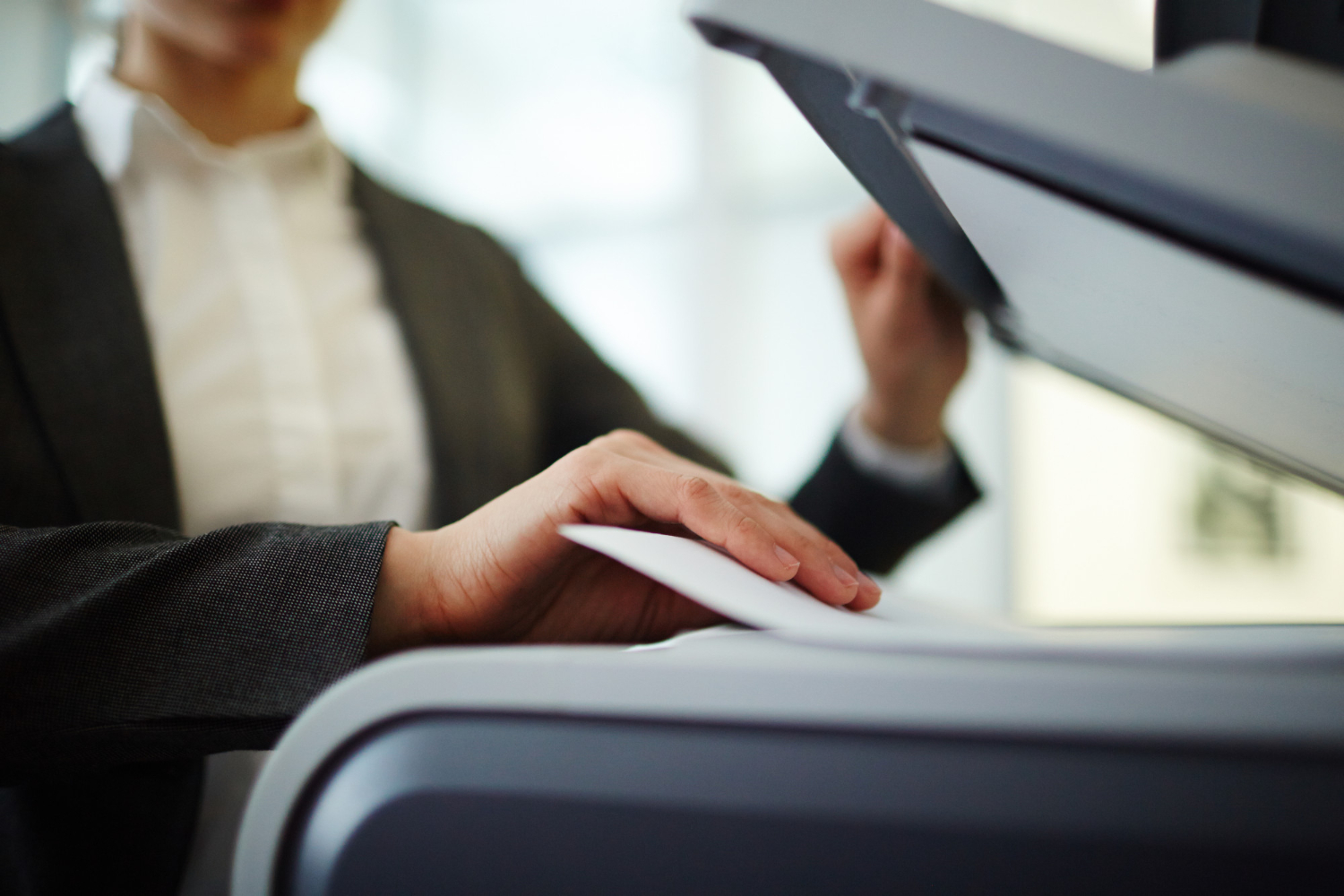
Editor’s Note: The opinions expressed here by the authors are their own, not those of impakter.com — In the photo: A woman sending a PDF as a Fax From her Computer. — Cover Photo Credit: freepik