


As education is dynamic, effects and animation is altering the manner of introducing concepts to learners of every level, as the abstract concepts become real to them. Teachers and instructional designers need something that would simplify creation of content that is visually stimulating to enhance virtual and hybrid learning. The desktop editor of CapCut provides a flexible platform, which allows one to create educational videos with animation easily and nondestructively. The work explores ways of including the use of animations and effects, particularly the use of audio tools to enhance the effectiveness of instructions.
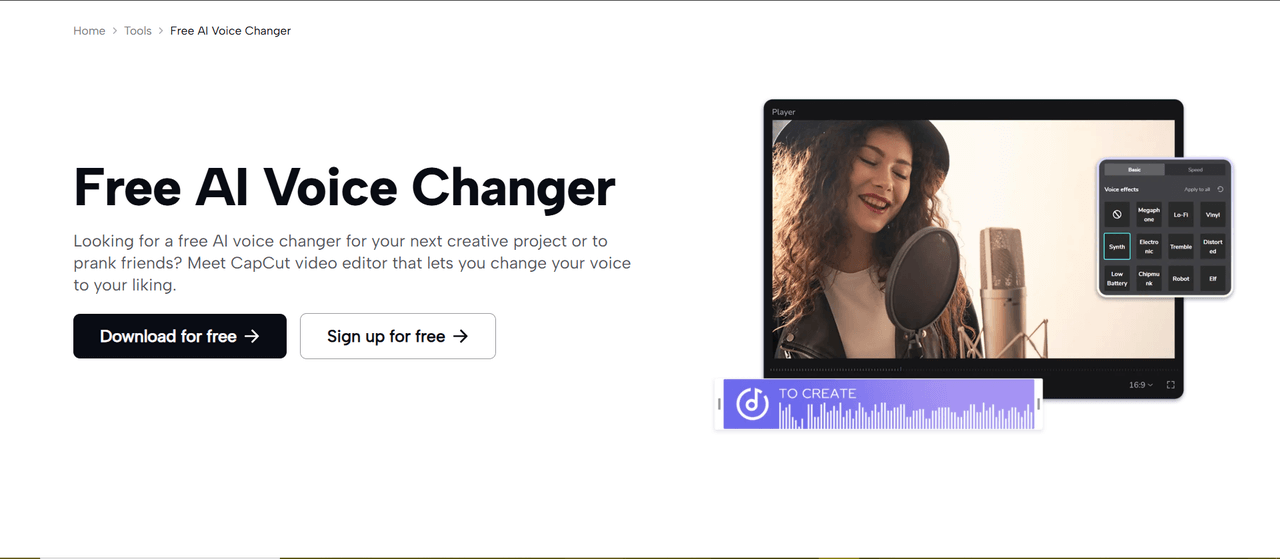
One of the most important tools to enrich educational narrations is the voice changer, which enables teachers to change voices with effects such as low tones in serious teachings or music enhancers in active discussions. This aspect gives lessons diversity, which holds the interest of learners without supplementary materials.
Innovations in software in the educational sector, e.g., CapCut desktop, offer designers in-built capabilities to assemble animated sequences and to export finished resources, which allow flexibility in a rapidly evolving educational environment.
Principal Advantages for Instructional Creators with CapCut Desktop
Improving Concept Comprehension Through Dynamic Audio Integration
CapCut supports voice adjustments, which match animations like echoing effects to emphasise specific points or whole voice presets to make things clear in tutorials. Such synergy helps in bringing strength to educational messages, which would translate to improved student remembrance and interactive engagement.
Enabling Quick Animation Assembly for Ongoing Curriculum Updates
The issue of efficiency concerns the changing needs of education. The tools available at CapCut enable quick application of effects and audio edits to support educators in updating content so quickly in response to new standards or student feedback.
Significant Reasons Why AI is a better match to create educational animation.
Accelerating the Process of Design with Advanced Capabilities.
The process of animation becomes less complicated with the help of AI, and it is possible to focus on pedagogical innovation. The video editing software offered is free and has all the features to control effects, overlaying, and timing to allow smooth animations and learning that has a goal.
Adjusting Animations to Suit Learner Profiles
The AI tools provided by CapCut can maximise relevance to different age groups or subjects, modulating audio and visuals to suit it best to create a more efficient engagement and teaching model.
Step-by-Step Guide to Creating Educational Animations and Effects with CapCut Desktop
With the help of CapCut desktop, creation of educational animations could be done in a more intuitively-paced manner. Use these tips to convince. Simulated interfaces with highlighted objects are shown as step-by-step recorded simulated screenshots.
Step 1: Install CapCut and Start a New Project
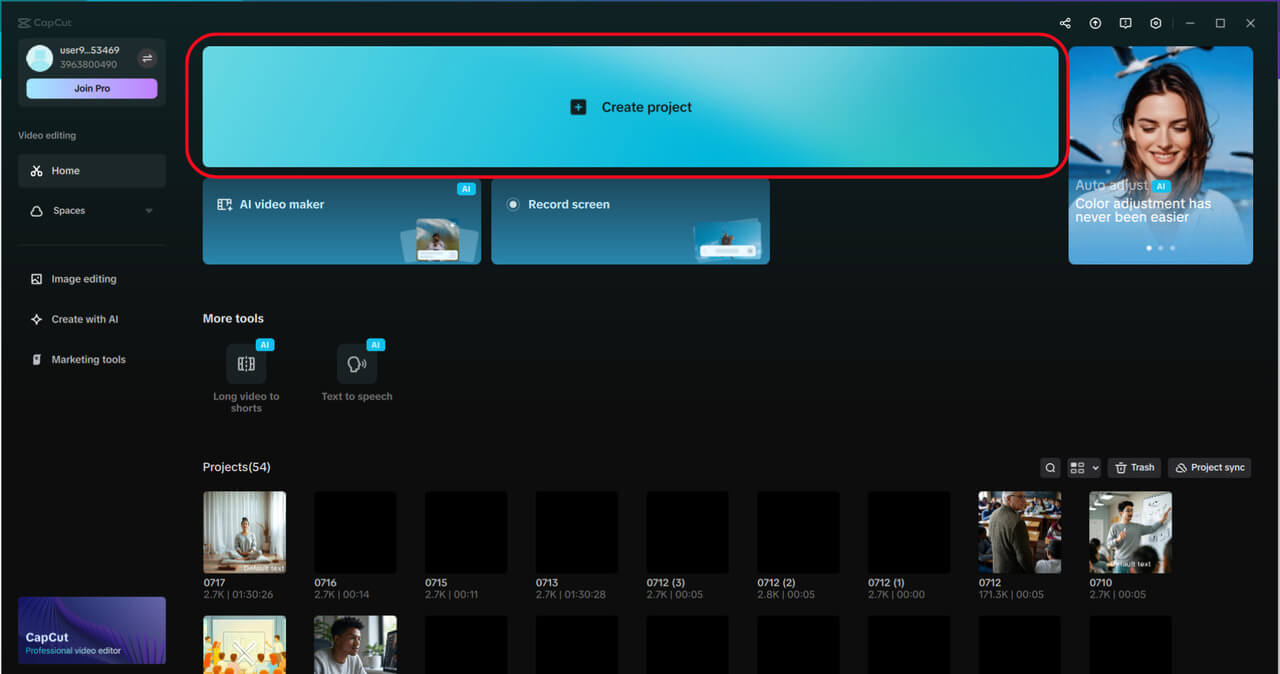
Obtain CapCut Desktop Video Editor via the official website. Click on the app and select “Create Project” and start with a blank timeline, which can be used with animations. The layout allows ease of navigation by educational users.
Step 2: Import Your Media
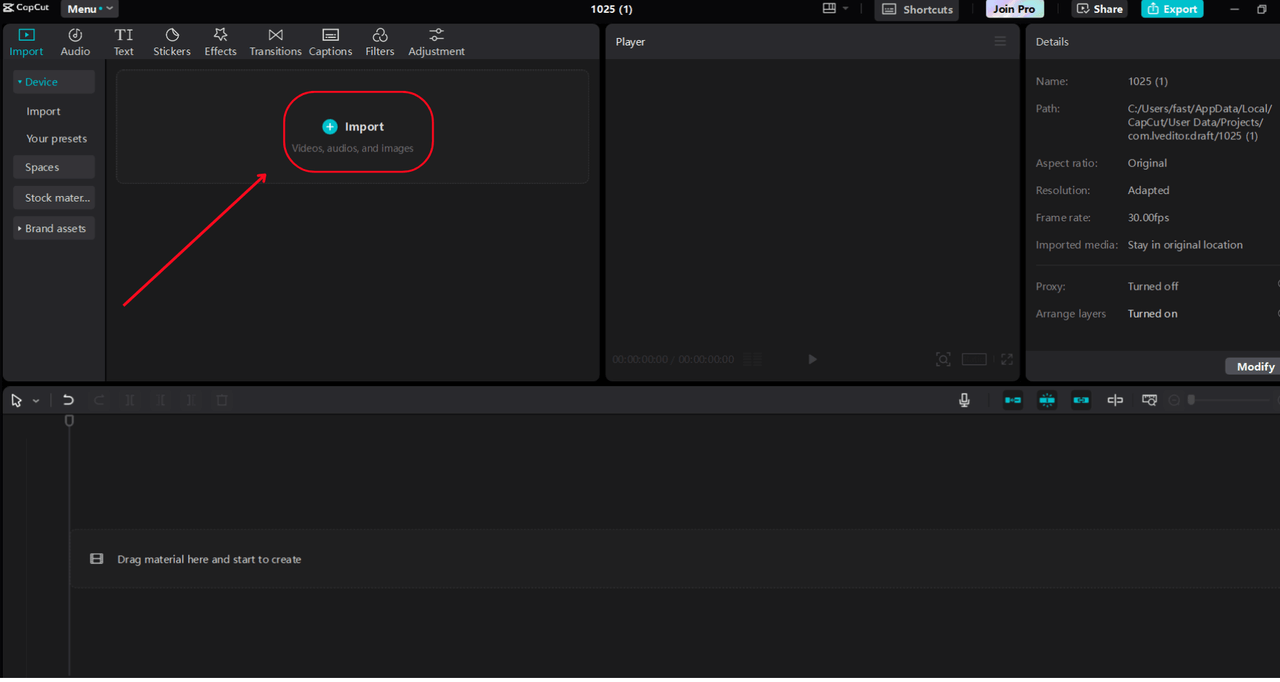
Use the “Import” option in the media area to import clips, graphics and sounds. Drag to position on the timeline where required. CapCut can host overlay tracks to mix animations, text, and audio elements.
Step 3: Apply and Customize with the Voice Changer
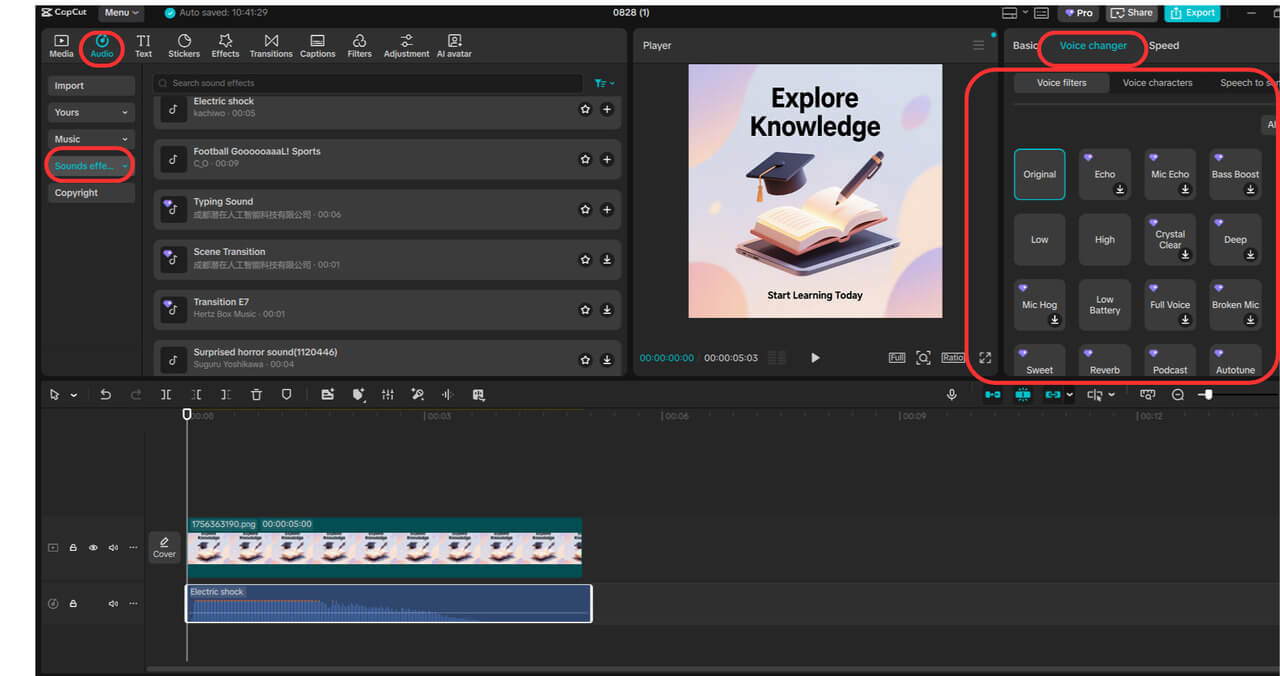
CapCut Desktop features a built-in Voice Changer to make the narration of your educational animation video more exciting. After either recording or importing your audio, you can drag the audio into the audio track of the timeline. At the top of the interface, click on the “Audio” and on the left menu, select “Sound effects” and then select any sound on the trending list.
Then you are able to select the audio clip and view its settings in the right-hand panel. You should press the “Voice changer”. Some of the presets in the voice changer tab are Echo, Mic Echo, High, Low, Full voice, bass Boost, and Music Enhancer, among others. Touch any of these and listen to what your narration will be like.
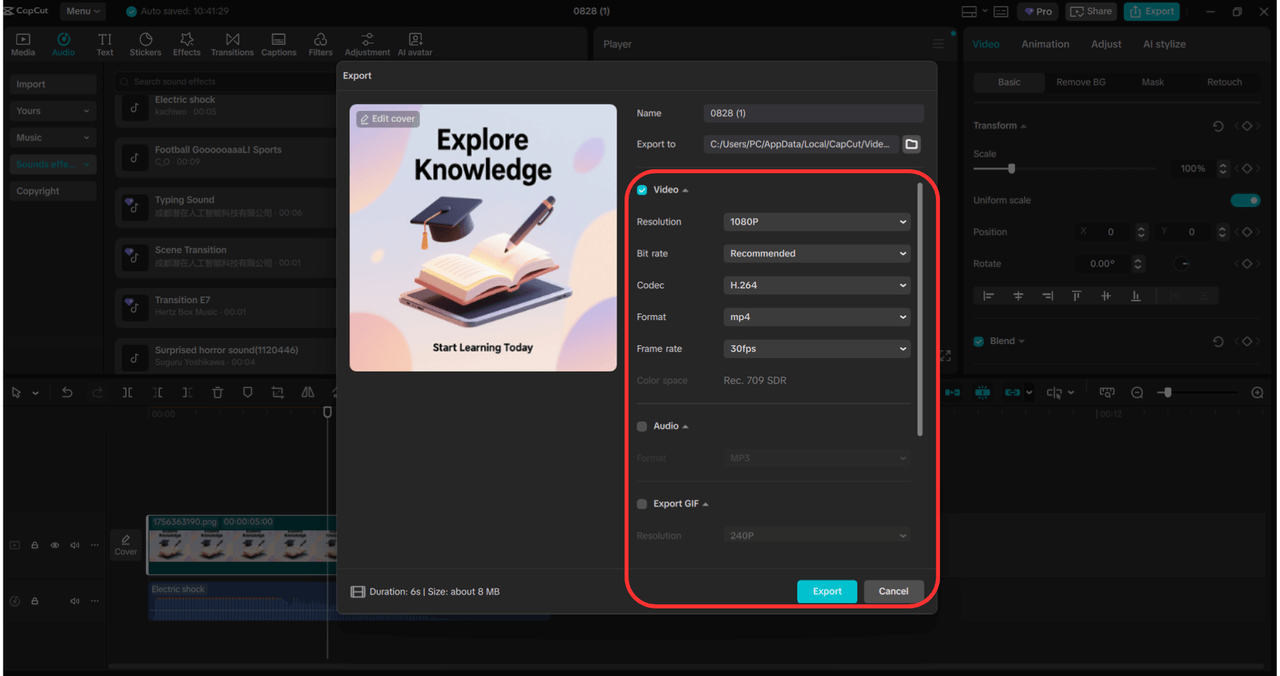
Step 4: Export your video
When you are done with the customising part, you need to click on “Export”. CapCut provides optimized files to share on learning platforms, learning classrooms, or online repositories, which can be viewed on several devices.
Key Strengths of CapCut Desktop for Teaching Applications
CapCut desktop is good at editing animation, and combining it with visual tools increases attractiveness. The CapCut online photo editor offers AI-based adjustments to objects, such as diagrams or icons, including resizing and improvement. Edit assets on the web, drag them into CapCut, and make them animated overlays on top of rich educational projects.
CapCut desktop is outstanding in educational animations with voice changer presets to provide instant audio changes based on lesson dynamics. It involves unlimited tracks to use to do elaborate designs, add photos, cloud features to share editing, and basic effects such as fades. It is flexible to social media or business, especially suited to the interactive requirements of education.
Conclusion
Using CapCut desktop to design teaching effects and animation will enable instructors to transform a concept into a lively and efficient instructional tool that motivates learning. Focusing on audio improvements and effective tools, it renders advanced creation available. Begin with CapCut to create new educational material.
Editor’s Note: The opinions expressed here by the authors are their own, not those of impakter.com — Cover Photo Credit: